Music Book
Your Music Book is where every piece you save lives. From here you can find a piece again, play it, practise it, tidy it up, and share it with other players. Open it from the Music Book button on the Dashboard, or from the ☰ menu in the top bar.
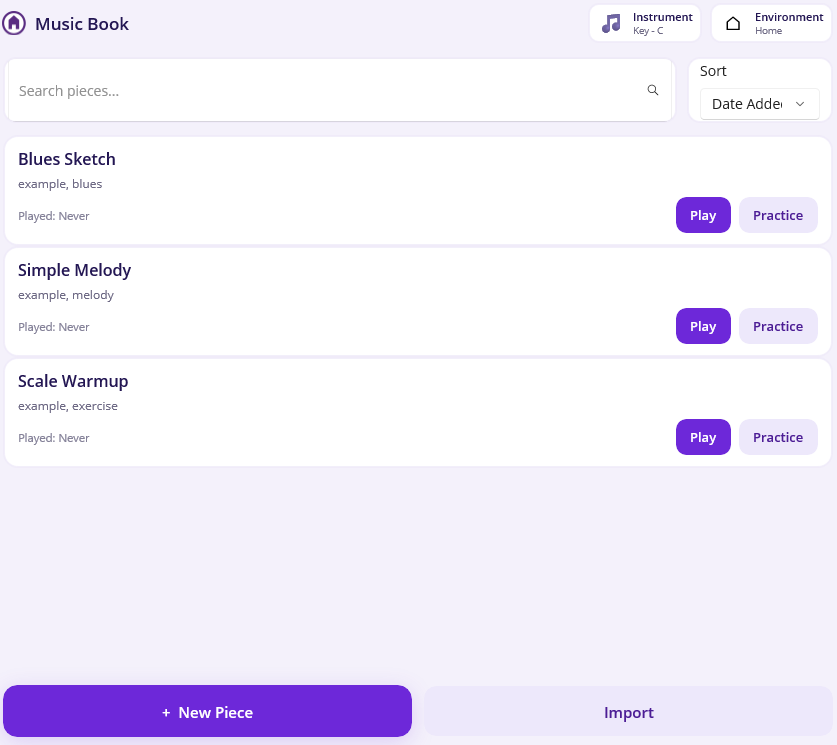
Each piece sits on its own row showing its name, your star rating, any tags, your last and best practice scores, and when you last played it. Two buttons — Play and Practice — are always there so you can jump straight in.
- Search for a piece by name or tag using the box at the top.
- Sort your list — by name, rating, score, or date — using the dropdown next to the search box.
- Swipe a row to the left to Delete a piece.
- Tap a row (anywhere but the buttons) to open its details.
Note
Harmonova starts you off with a few example pieces so the book isn’t empty on day one. They’re tagged
example— feel free to play with them, and delete them once you’ve found your feet.
Play back your music
Tap Play on any row (or Play on the details screen) to hear the piece. Harmonova counts you in for one bar, then a green cursor sweeps across the music in time with the beat, and a ring highlights the note that’s sounding right now.
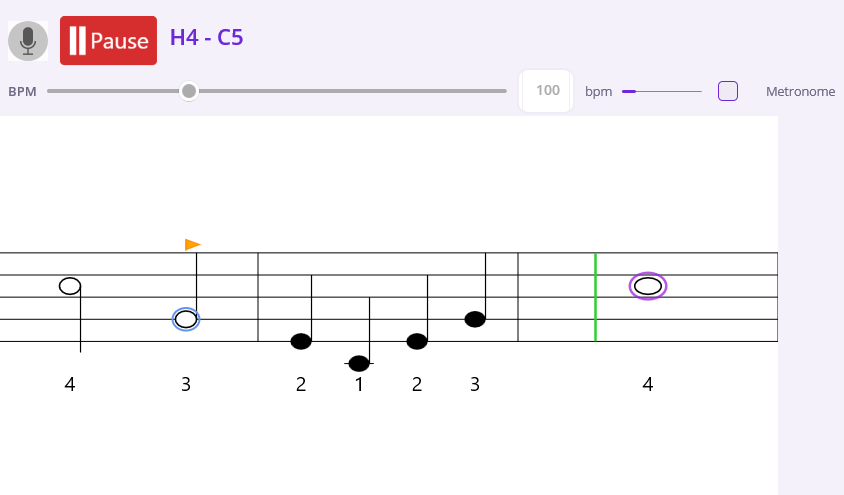
Before you start, you can tap any note to set where playback begins — handy for jumping to the part you care about. Tap the same note again to clear it and start from the top.
Note
Playback plays the recorded samples for your instrument. The built-in Key of C harmonica is ready to go out of the box; for your own instruments, playback uses the samples captured when you calibrated their holes.
Practise your music
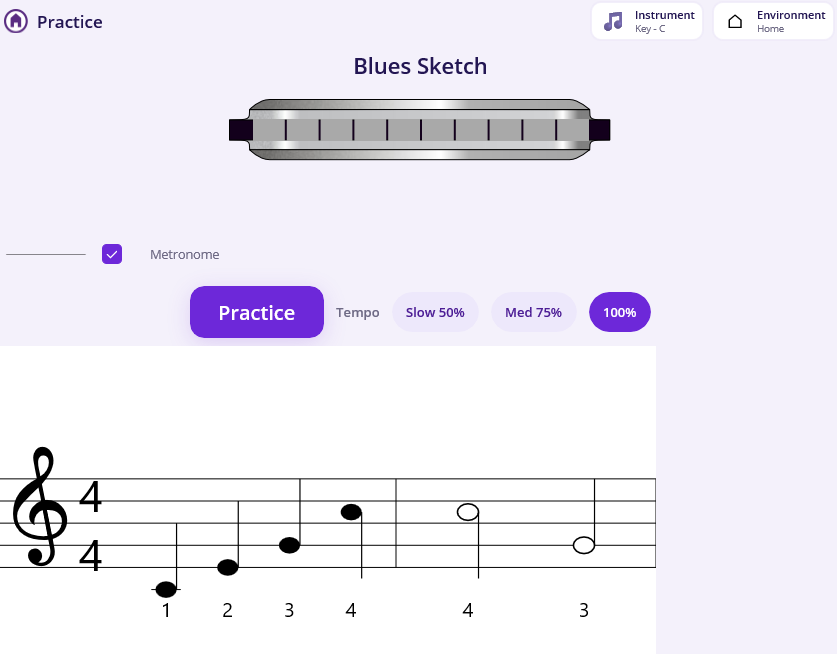
Practice is where Harmonova really earns its keep. Tap Practice and play along — Harmonova listens and grades every note in real time.
Choosing your tempo
Learning something tricky? Set the Tempo before you start:
- Slow (50%) — half speed, for finding your feet.
- Med (75%) — a comfortable middle gear.
- 100% — the piece’s real tempo.
You can also tap a note first to practise just a section, and toggle the Metronome on for a click to keep you honest. As with playback, you get a one-bar count-in before the first note.
How you’re scored
As you play, each note is colour-coded right there on the sheet, so you can see how you’re doing without a distracting running total:
- 🟢 Green — right note, right time.
- 🟠 Amber — right note, but your timing was early, late, or held too long.
- 🔴 Red — wrong note (or a note played during a rest).
- ⚪ Grey — a note you missed entirely.
When the piece finishes (or you stop), Harmonova shows a results screen with your overall score, a count of greens, ambers, reds and misses, and a timeline so you can spot the bars that tripped you up.
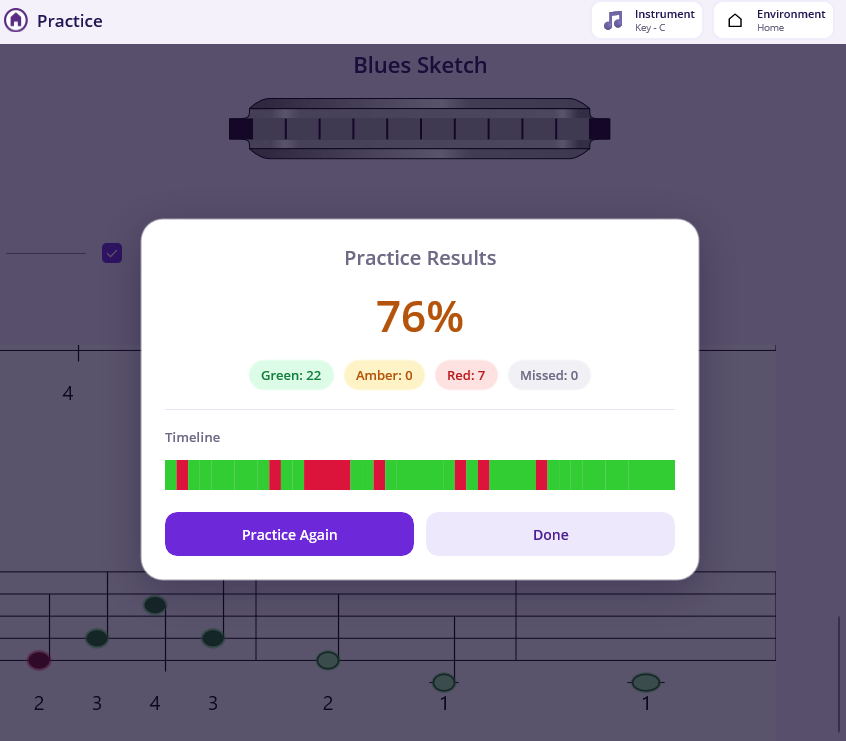
Your last and best scores are remembered against the piece, so the Music Book doubles as a progress tracker. Only full run-throughs from the beginning update your best score — practising a section won’t dent it.
Note
Scores from a slowed-down run count too. If a gentle 50% session has set an unrealistic “best”, you can wipe the slate clean with Reset Scores on the piece’s details screen.
Edit your music
To change the actual notes of a saved piece, open it and tap Edit Notes.
This opens the piece in the same editor you used to record it, so all the tools from the Recording page are available — drag notes to change their pitch or position, change their length, copy and paste phrases, and so on. Saving from there updates the same piece in your book.
Editing your music’s metadata
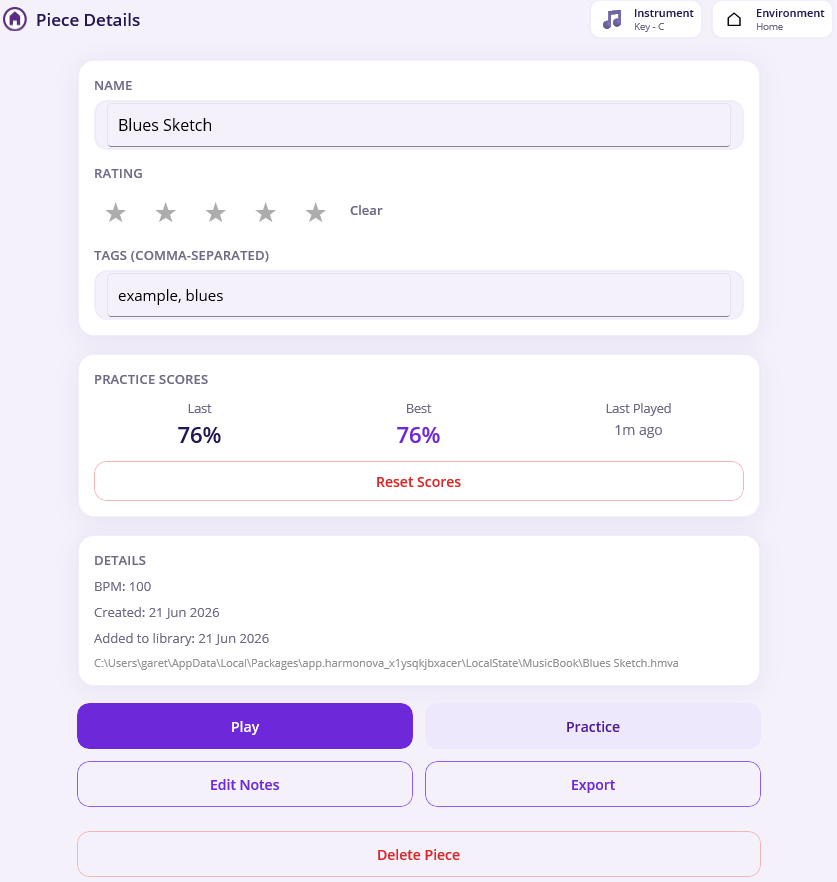
The details screen is also where you manage everything about a piece (rather than its notes):
- Name — rename the piece.
- Rating — tap the stars to rate it out of five; tap Clear to remove the rating.
- Tags — add comma-separated labels like
blues, exercise, favourite. Tags are searchable, so they’re a great way to group pieces. - Practice scores — see your last and best scores and when you last played, or Reset Scores to start over.
Changes are saved as you make them — there’s no separate save button for these.
Import and export your music
Pieces are single, self-contained files (with a .hmva extension), which makes them easy to share.
- To share a piece, open it and tap Export. Choose where to save the file, then send it to a friend however you like. The file carries the notes, name, tags and rating with it.
- To add a piece someone sent you, tap Import at the bottom of the Music Book and pick the file. Harmonova copies it into your book.
Note
When you import a piece, its practice scores and “last played” date are cleared — they’re personal to whoever recorded them, so you start your own fresh record. Everything else comes across exactly as it was made.
Want to move your whole collection at once — pieces, instruments, environments and all — to a new device? That’s what Backup & Restore is for. See the Settings page.