Settings
Settings is your one place for app-wide preferences and looking after your data. Open it from the ☰ slide-out menu in the top bar. Every setting takes effect straight away — there’s no save button to hunt for.
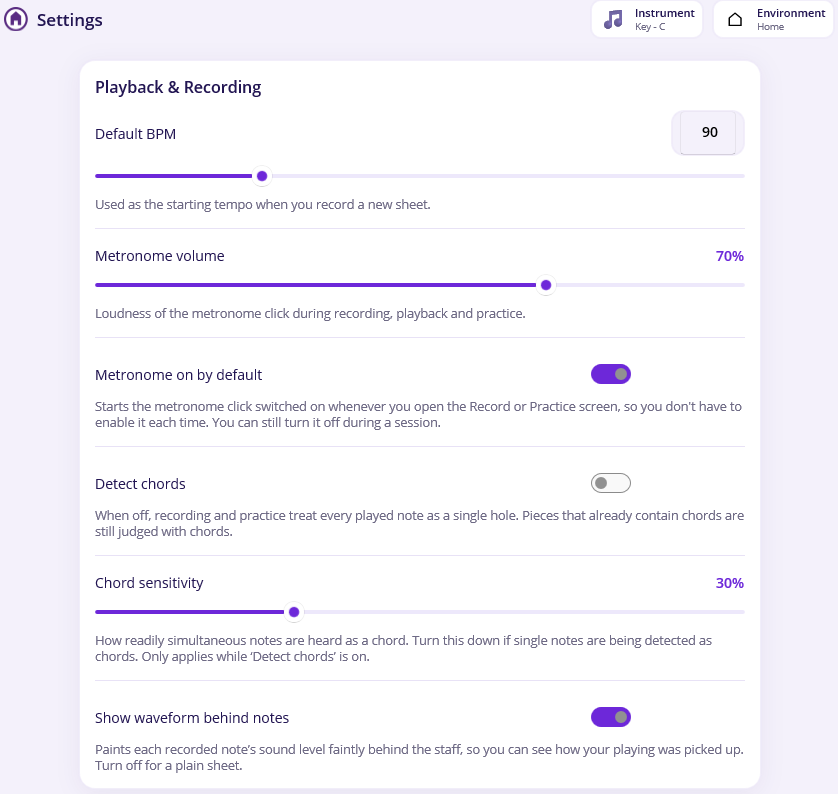
The page is split into four cards: Playback & Recording, Data, Privacy, and About.
Playback & recording
Default BPM
The tempo every brand-new piece starts at. Set it with the box or the slider (40–240 BPM). If you open a saved piece, its own stored tempo is used instead — this only affects fresh recordings.
Metronome volume
How loud the metronome click is during recording, playback and practice. Slide it from 0 to 100%.
Chord detection
Harmonova can recognise when you’re playing two or more holes at once as a chord.
- Detect chords — when this is on, simultaneous notes are written as a chord. Turn it off and Harmonova treats every sound as a single hole, which is cleaner if you only ever play single notes. (Pieces that already contain chords are still practised as chords either way.)
- Chord sensitivity — how eagerly Harmonova hears notes as a chord. If single notes are being mistaken for chords, turn this down. It only matters while Detect chords is on.
Show waveform behind notes
With this on, each recorded note’s sound level is painted faintly behind the staff, so you can see how your playing was picked up. Turn it off for a plain, uncluttered sheet.
Environments (advanced)
Environments can be used to set a sound profile for an instrument in a specific place. So you can set up places like home, studio, garage, park or anywhere. You can then callibrate Harmonova to ignore differing levels of background noise.
This feature is useful but Harmonova is now capable of detecting background noise volumes in realtime, making this feature less valuable than it used to be. If you have set up environments in the past, you’ll see them all here now.
If you haven’t set up environments, there is no need to do so but feel free to use it if you find it useful or makes a difference to detection accuracy in your space.
Privacy settings
Harmonova is built to respect your privacy. Your recordings always stay on your device — audio is never uploaded. The only things you can choose to share are anonymous, and no personal information is ever collected.
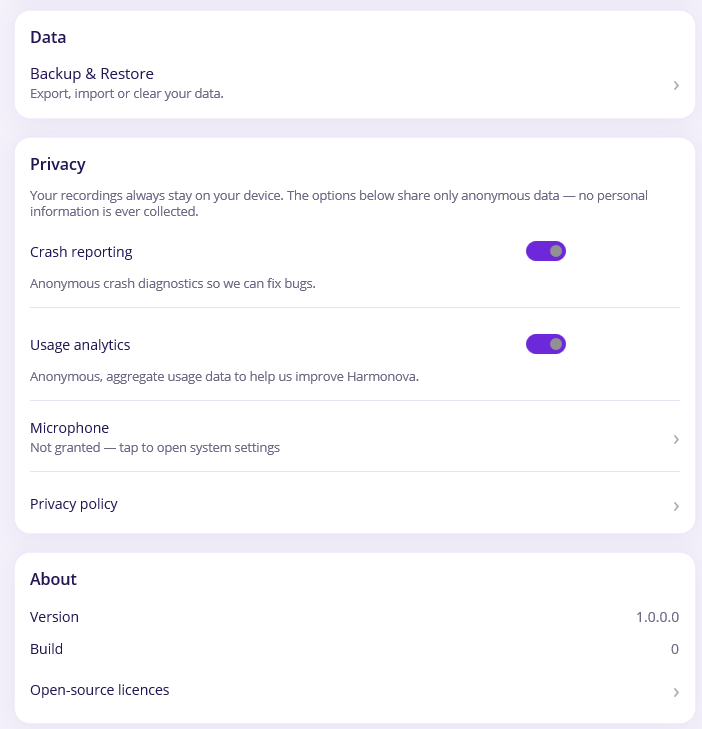
You’re asked about these preferences when you open the app for the first time, and you can change your mind here any time:
- Crash reporting — sends anonymous diagnostics if the app crashes, so we can fix the bug. Off by default.
- Usage analytics — anonymous, aggregate data about which features get used, to help us improve Harmonova. Off by default.
- Microphone — shows whether Harmonova has microphone permission (which it needs to hear your harmonica). Tap through to your device settings to change it.
- Privacy policy — opens our full privacy policy so you can read exactly what is and isn’t collected.
Backup and restore
Everything you create — your music, instruments, environments, practice history, stats and achievements — lives on your device. Backup & Restore (under the Data card) lets you save all of it to a single file, so you can keep a copy or move to a new device.
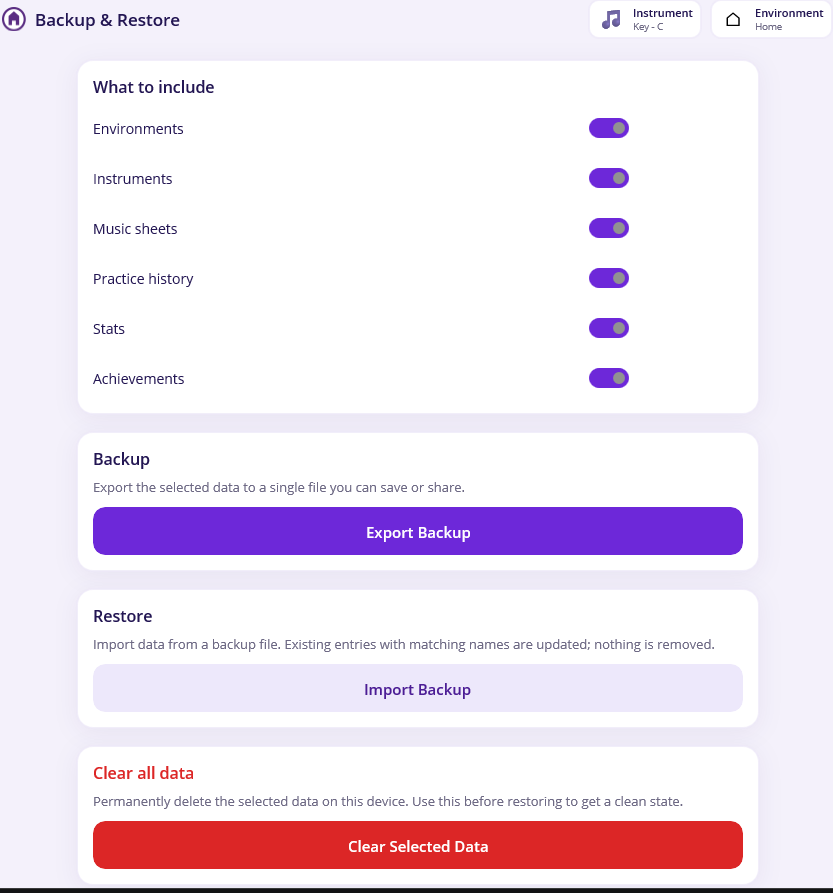
At the top, tick the categories you want to include:
Environments • Instruments • Music sheets • Practice history • Stats • Achievements
Then choose what to do:
- Export Backup — bundles the selected data into one file you can save or share.
- Import Backup — brings a backup file back in. Existing items with matching names are updated; nothing already on your device is removed.
- Clear Selected Data — permanently deletes the selected data from this device. Use this before importing if you want a completely clean start.
Warning
Clear Selected Data can’t be undone. Make sure you’ve exported a backup first if there’s anything you want to keep. This has been said a few times but it bears repeating. Because Harmonova doesn’t share any of your data, there is no way for support to help you recover from data deletion, please manage your data carefully.
About
The About card shows your app version and build number — handy to quote if you ever report a problem — and a link to the open-source licences for the components Harmonova is built on.
That’s the lot. With your gear set up and your preferences tuned, you’re ready to make the most of Harmonova — happy playing!